
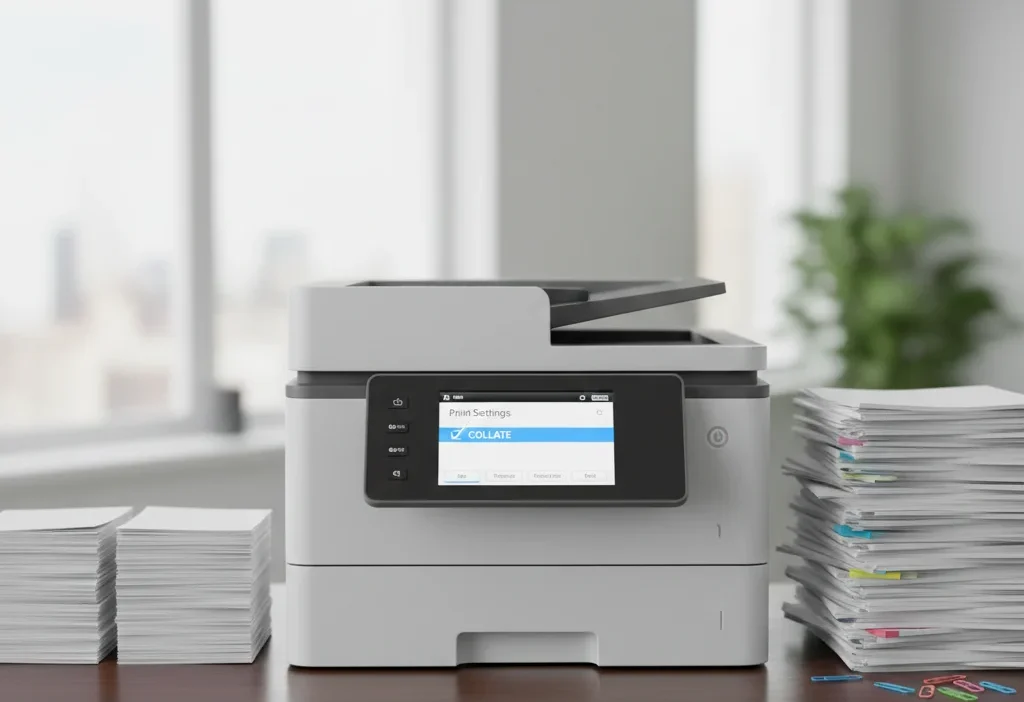
(Imagine you’ve just printed a 50-page report for a meeting. The pages fly out in a chaotic mess—page 50, then 1, then 25. You spend the next 10 minutes frantically trying to put them in order, muttering about technology. Sound familiar? That moment of printer-induced panic is exactly where the “Collate” function becomes your secret weapon.)
: “Collate” on a printer means to automatically gather and arrange printed pages in a sequential, logical order (e.g., Page 1,2,3 then the next set 1,2,3). It’s the convenient, time-saving feature that prevents you from having to manually sort large print jobs.
🤔 What Does “Collate” Mean on a Printer?
In the simplest terms, “collate” refers to the printer’s ability to organize multiple copies of a multi-page document in the correct page order. When you select “Collate,” the printer intelligently sequences the pages for you.
Think of it like printing a booklet. If you’re printing three copies of a 3-page document:
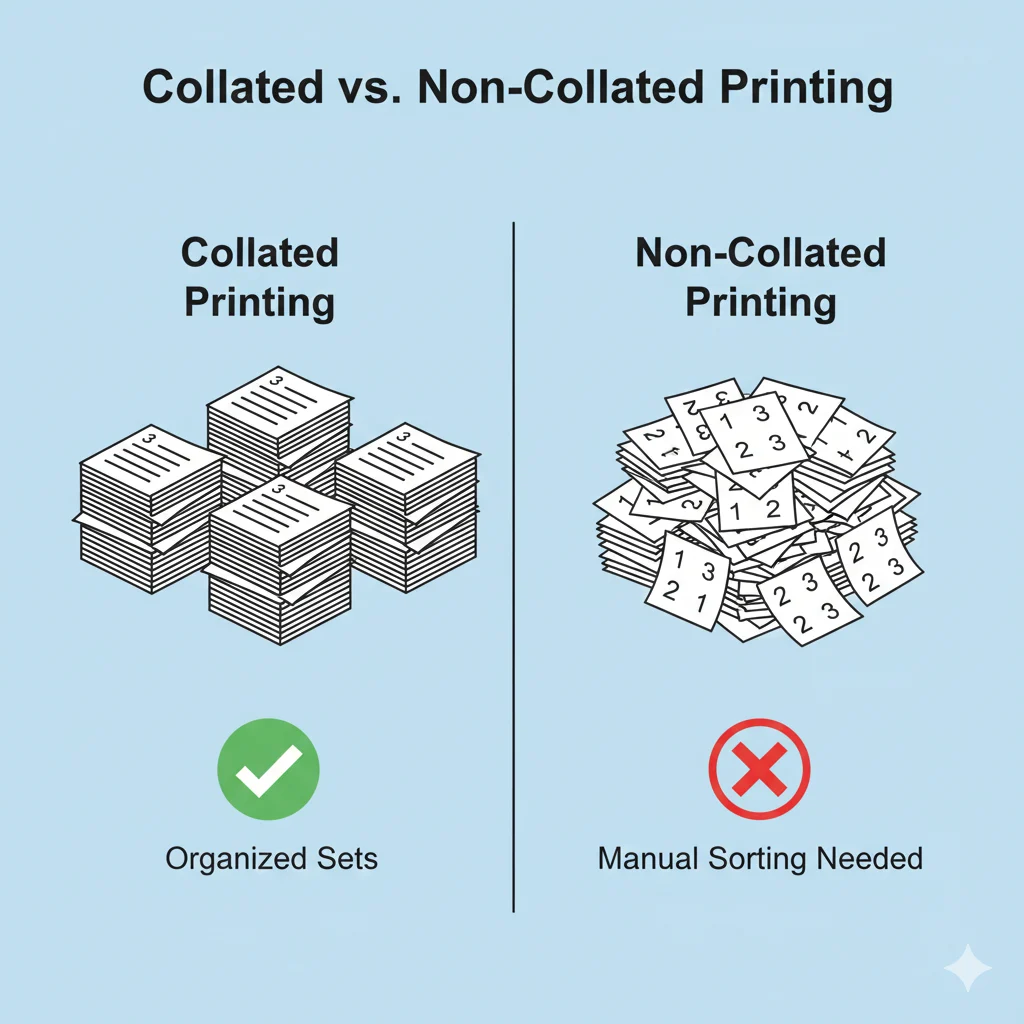
- WITH Collate ON: The printer outputs: Copy 1: Page 1, Page 2, Page 3 → Copy 2: Page 1, Page 2, Page 3 → Copy 3: Page 1, Page 2, Page 3. Each set is ready to grab and staple.
- WITH Collate OFF: The printer outputs: All Page 1s: Page 1, Page 1, Page 1 → All Page 2s: Page 2, Page 2, Page 2 → All Page 3s: Page 3, Page 3, Page 3. You’d have to manually sort every single copy.
In short: Collate = Automatic Page Ordering = No Manual Sorting Hassle.
🖨️ Where Is the “Collate” Setting Commonly Used?
You’ll find the collate checkbox or option in the print dialog box of virtually any program, across all platforms. It’s a universal printing feature.
- 💼 Work & Office Environments: Essential for printing reports, proposals, training manuals, and meeting handouts.
- 🎓 Academic Settings: A lifesaver for printing essays, research papers, syllabi, and study packets.
- 🏠 Home Use: Useful for printing recipes, travel itineraries, or multi-page DIY guides.
- 📊 Professional & Creative Fields: Critical for printing booklets, presentations, and client portfolios.
Tone: It’s a purely functional, neutral setting—neither formal nor casual. It’s a standard tool for efficiency.
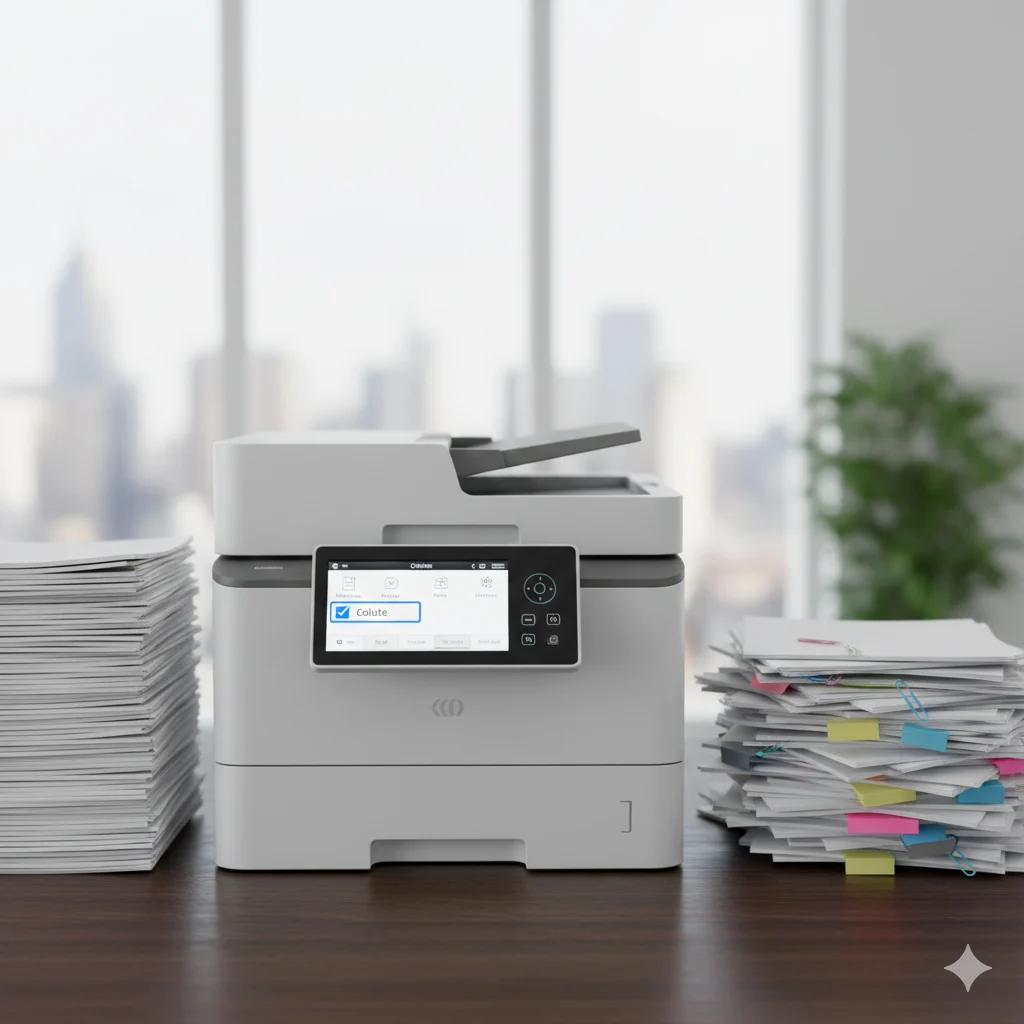
💬 Real-World Scenarios: When Collate Saves the Day
Let’s look at how this plays out in everyday situations.
Scenario 1: The Office Meeting
You: “Hey, can you print 10 copies of the 15-page Q2 report for the 2 PM meeting?”
Colleague (with Collate ON): “Sure, all done. They’re stacked and ready on the table.”
Colleague (with Collate OFF): “They’re printing… you’ll just need to sort all 150 pages into 10 sets real quick.”
Scenario 2: The Group Project
A (in group chat): “I printed the project guidelines for everyone!”
B: “Thanks! Are they collated?”
A: “Yes, each of our 5 copies is already in order. Saved us a huge sorting session.”
Scenario 3: The Home Recipe
Parent: “I printed that 5-page family recipe for you and your sister.”
Child: “Great, are the pages in order?”
Parent: “Yep, I made two collated copies. One for each of you, already stapled.”
✅ When to Use and When Not to Use Collate
✅ USE Collate When:
- Printing multiple copies of anything that needs to be read in sequence (reports, manuals, essays).
- Preparing documents for immediate distribution or presentation.
- You want to save time and avoid manual sorting errors.
- Printing duplex (double-sided) documents—collate ensures the front/back sequencing stays correct.
❌ You Might TURN Collate OFF When:
- You need all copies of one specific page (e.g., printing 30 copies of just the sign-in sheet).
- You are printing a single copy of a document.
- You are printing materials for a manual assembly where you want all of the same page together (less common for typical office work).
Collate in Context: Quick Guide
| Context | Example Use | Why It Works (or Doesn’t) |
|---|---|---|
| Office Report | Print 5 collated copies of the 20-page review. | Each complete set is ready to bind and hand out. |
| Academic Paper | Student prints 3 collated copies of their thesis for reviewers. | Professiors get a perfectly ordered document to read. |
| Creative Portfolio | Artist prints a collated, double-sided portfolio. | Ensures the artwork and descriptions stay paired correctly. |
| Printing a Form | Print 50 non-collated copies of page 1 (the waiver form). | You only need the first page, so collating is unnecessary. |
🔄 Similar Printer Settings & Terminology
Understanding “collate” is easier when you know its cousins in the print dialog box.
| Setting/Term | Meaning | When to Use It |
|---|---|---|
| Duplex / Double-Sided | Prints on both sides of the paper. | To save paper and create professional booklets or manuals. |
| Reverse Order | Prints last page first, so the stack is in correct order when face-up. | When your printer outputs pages face-up; ensures you don’t have to reorder. |
| Pages per Sheet | Prints multiple reduced-size pages on one sheet of paper. | For creating handy reference sheets or draft copies to save paper. |
| Staple/Hole Punch | Finishing functions that bind pages together (often on higher-end printers). | When you need booklets or pre-punched pages for binders immediately. |
| Scale to Fit | Adjusts a document to fit the chosen paper size. | When printing a PDF or document designed for a different paper size. |
🧠 Pro Tips & Troubleshooting Collate
- Always Preview: Before hitting print, use the print preview. It often shows a visual representation of how pages will be output.
- Check Driver Settings: Sometimes the printer driver has its own collate setting that might override the application’s setting. Ensure they match.
- Know Your Output Tray: If printing many collated sets, ensure your output tray has enough capacity to hold the entire job without jamming.
- Combining Settings: For the ultimate in efficiency, combine Collate + Duplex + Staple (if available) for professionally finished multi-copy documents straight from the printer.
❓ FAQs About “Collate on Printer”
Q: Does collate use more paper?
A: No, collate does not affect the amount of paper used. It only changes the order in which the pages are printed and stacked.
Q: What happens if I don’t collate?
A: If you print multiple copies without collating, the printer will produce all copies of page 1, then all copies of page 2, etc. You will have to manually gather one page from each stack to assemble each complete set.
Q: Is collate the default setting on printers?
A: It varies by printer and driver, but collate is often the default setting because it’s the most commonly desired option for multi-copy jobs.
Q: Can I collate when printing double-sided?
A: Absolutely, and it’s highly recommended. Collating for duplex printing ensures that each copy’s front and back pages stay in the correct sequence.
Q: My collated copies came out wrong. What happened?
A: This could be due to a mismatch between software and printer driver settings, a paper jam during the job, or an issue with the document itself. Try a small test print first.
✨ Conclusion
In the end, the “Collate” function is a small checkbox with a massive impact on productivity. It’s the unsung hero of the print dialog, transforming a potential chore of manual sorting into a seamless, automated process. Whether you’re a student, a professional, or just someone printing recipes at home, understanding and using “collate” means less time spent wrestling with paper and more time for the things that actually matter. So next time you hit print, take a second to check that box—your future, organized self will thank you.

Olivia Bennett is a lifestyle researcher and holistic wellness advocate specializing in mindfulness, dream healing, and manifestation techniques. With a background in psychology and meditation therapy, Olivia writes to empower readers to achieve mental clarity and emotional balance through dream awareness. Her articles provide practical tips, spiritual insights, and real-life strategies for boosting intuition and creating a more meaningful life. Olivia’s work at DreamingSign.com inspires readers to use dreams as a tool for personal transformation.